macOS 11 Big Sur Nginx Setup: Multiple PHP Versions
Create a very robust, clean, and fast local multi-version PHP (7.4, 8.0, 8.1) development environment on macOS Big Sur with Intel or Apple M1 chipsets.

Important Note: There is an updated tutorial for installing multiple versions of PHP with nginx on macOS 12 Monterey.
In this tutorial, we will take the following steps and create a very robust, clean, and fast local multi-version PHP (7.4, 8.0, 8.1) development environment on macOS Big Sur with Intel or Apple M1 chipsets:
- Install Xcode, VS Code & Homebrew *: This step is required to get started.
- Install openSSL & wget *: This step is required to get started.
- Install MySQL: This step is not required, but MySQL and PHP are like PB & J.
- Install PostgreSQL: This step is not required, but I personally use PostgreSQL, so its here.
- Install PHP Versions *: This is the meat.
- Install Xdebug: This is an awesome tool I highly recommend.
- Install Nginx *: This step is required and is super in-depth, so you get SSL/TLS certs and custom local domains.
- Install Dnsmasq *: This step is required for those custom domains.
- Install MailHog: This tool is excellent that you will love if you send email during local development. It catches emails and provides a nice looking UI to view them.
- Install Redis: This is recommended if you are doing Laravel work.
Setup: Xcode, VS Code, & Homebrew
Before starting you need a few tools installed to take the stress out of the setup process: Xcode, VS Code, and Homebrew.
First, install Xcode. Next, install the CLI tools from the terminal. We will be using the terminal a lot coming up (I like iTerm2).
xcode-select --installAlso, you will need VS Code installed with the code command in your system path.
Finally, install Homebrew.
/bin/bash -c "$(curl -fsSL https://raw.githubusercontent.com/Homebrew/install/master/install.sh)"Homebrew will ask you to run a few commands, don't miss them.
Now, that the tools are installed, you can get into the rest of the setup process.
OpenSSL & wget
Install OpenSSL.
brew install openssl
brew install wget
MySQL
Install MySQL.
brew install mysql
brew services start mysql
brew services list
Next, update your my.cnf
# Intel x86 Chipset
code /usr/local/etc/my.cnf# Apple Silicon M1 Chipset
code /opt/homebrew/etc/my.cnf# Default Homebrew MySQL server config
[mysqld]
# Only allow connections from localhost
bind-address = 127.0.0.1
mysqlx-bind-address = 127.0.0.1
# Add mode only if needed
sql_mode = "ONLY_FULL_GROUP_BY,ERROR_FOR_DIVISION_BY_ZERO,NO_ENGINE_SUBSTITUTION"Now, secure using the password password and then restart.
mysql_secure_installation
brew services restart mysql
Next, MySQL 8 authentication needs to be updated per user to mysql_native_password. Note, there is no space before the username and password.
mysql -uroot -ppassword
mysql> ALTER USER 'root'@'localhost' IDENTIFIED WITH mysql_native_password BY 'password';
Postgres
Install postgresql (not the postgres app).
brew install postgresql
brew services start postgresql
brew services list
psql postgres
Now, you can check your user list.
postgres-# \duPHP
Don't use the default homebrew core tap for PHP. Use shivammathur/php.
brew tap shivammathur/php

brew install shivammathur/php/php@7.2
brew install shivammathur/php/php@7.3
brew install shivammathur/php/php@7.4
brew install shivammathur/php/php@8.0
brew install shivammathur/php/php@8.1
Next, set PHP 7.4 as your default php CLI version.
brew unlink php
brew link --overwrite --force php@7.4
Now, for each version update the php-fpm you will need a unique port. Change the ports of each php-fpm to match its php version number. For example, php@7.4 I use port 9074.
Also, you will want php-fpm to run with your user account and not _www. Note, the folder path difference is based on the Mac processor your computer has (Intel x86 or Apple M1 ARM).
# Intel x86 Chipset
code /usr/local/etc/php/7.4/php-fpm.d/www.conf# Apple Silicon M1 Chipset
code /opt/homebrew/etc/php/7.4/php-fpm.d/www.conf# default
user = _www
group = _www
listen = 127.0.0.1:9000
# change to
user = <your_username>
group = staff
listen = 127.0.0.1:9074Optionally, before starting php-fpm, if you want to make edits to a php.ini file now is the time. For example, you might want to increase the upload_max_filesize and post_max_size to 10M.
Again, note the path based on the chipset.
# Intel x86 Chipset
/usr/local/etc/php/7.2/php.ini
/usr/local/etc/php/7.3/php.ini
/usr/local/etc/php/7.4/php.ini
/usr/local/etc/php/8.0/php.ini
/usr/local/etc/php/8.1/php.ini# Apple Silicon M1 Chipset
/opt/homebrew/etc/php/7.2/php.ini
/opt/homebrew/etc/php/7.3/php.ini
/opt/homebrew/etc/php/7.4/php.ini
/opt/homebrew/etc/php/8.0/php.ini
/opt/homebrew/etc/php/8.1/php.iniOnce you are ready, start-up php-fpm for each version.
brew services start php@7.2
brew services start php@7.3
brew services start php@7.4
brew services start php@8.0
brew services start php@8.1
Check that you have processes running and validate your ports are correct.
sudo lsof -i -n -P|grep php-fpm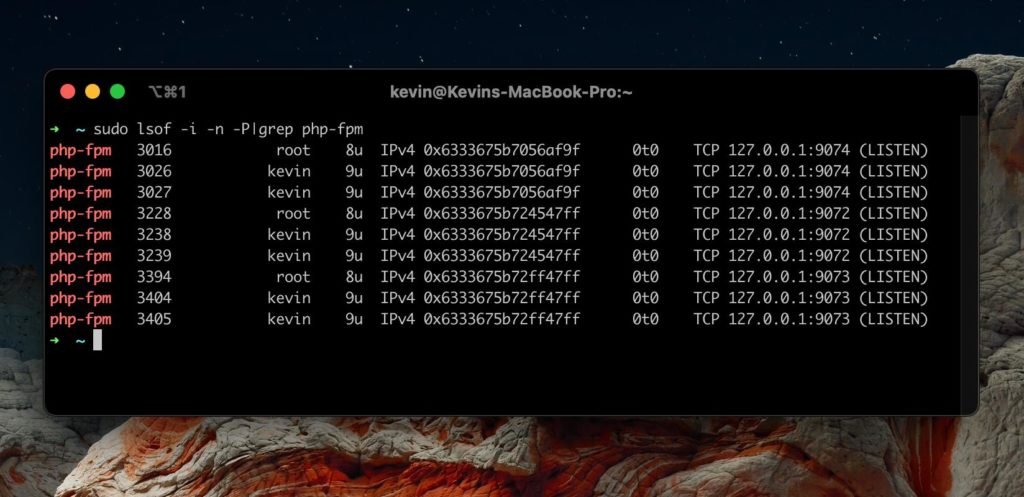
Alias multiple PHP versions
Next, and optionally, add some PHP CLI aliases by adding the following to the bash scripts within your .bashrc or .zshrc file. This will give you quick access to a specific version when needed.
# Intel x86 Chipset
alias php72="/usr/local/opt/php@7.2/bin/php"
alias php73="/usr/local/opt/php@7.3/bin/php"
alias php74="/usr/local/opt/php@7.4/bin/php"
alias php80="/usr/local/opt/php@8.0/bin/php"
alias php81="/usr/local/opt/php@8.1/bin/php"# Apple Silicon M1 Chipset
alias php72="/opt/homebrew/opt/php@7.2/bin/php"
alias php73="/opt/homebrew/opt/php@7.3/bin/php"
alias php74="/opt/homebrew/opt/php@7.4/bin/php"
alias php80="/opt/homebrew/opt/php@8.0/bin/php"
alias php81="/opt/homebrew/opt/php@8.1/bin/php"Once you reload your bash file, you can access each alias from the Mac command line. For example, you can check the exact version of the aliased version of PHP.
php72 -vSwitching Between Multiple PHP Versions
You can add the following to your bash scripts, to make switching between multiple PHP versions on macOS simple:
# Make switching versions easy
function phpv() {
    brew unlink php
    brew link --overwrite --force "php@$1"
    php -v
}
If you want to change the default php CLI you can set it using brew or if added, the bash function phpv 7.4.
# brew
brew unlink php
brew link --overwrite --force php@7.4

# bash function
phpv 7.4
Homebrew Upgrade PHP Errors
As time passes Homebrew is bound to break your PHP installations. When this happens you can reinstall the PHP version having the error. Keep in mind you may need to reconfigure that version of PHP but I've found your php.ini files remain the same.
brew reinstall shivammathur/php/php@7.4Xdebug
Now, I like xdebug for development. But, this step is optional. To install xdebug for each version of php (cli and fpm) run the following.
brew link --overwrite --force php@7.2
pecl uninstall -r xdebug
pecl install xdebugbrew link --overwrite --force php@7.3
pecl uninstall -r xdebug
pecl install xdebugbrew link --overwrite --force php@7.4
pecl uninstall -r xdebug
pecl install xdebugbrew link --overwrite --force php@8.0
pecl uninstall -r xdebug
pecl install xdebugbrew link --overwrite --force php@8.1
pecl uninstall -r xdebug
pecl install xdebugFor each version, you have installed update the php.ini. In our example, php@7.4.
# Intel x86 Chipset
code /usr/local/etc/php/7.4/php.ini# Apple Silicon M1 Chipset
code /opt/homebrew/etc/php/7.4/php.iniYou will need to remove the zend_extension="xdebug.so" that is added to the top of the file by the pecl install process. The new default xdebug port is 9003 – it was port 9000.
Add the following to the bottom of your php.ini file.
[xdebug]
zend_extension="xdebug.so"
xdebug.mode=debug
xdebug.client_port=9003
xdebug.idekey=PHPSTORM
When finished adding your xdebug configuration to each version you have installed kill all the currently running php-fpm processes. This is not wise to do on a production server. On a new Mac dev setup, this is perfectly fine.
sudo killall php-fpmNginx
Install nginx.
brew install nginx
sudo nginx
Now test the install is working.
http://localhost:8080Now, change the default settings.
# Intel x86 Chipset
code /usr/local/etc/nginx/nginx.conf# Apple Silicon M1 Chipset
code /opt/homebrew/etc/nginx/nginx.conf# From
listen 8080;
server_name localhost;
index index.html;
# To
listen 80;
server_name localhost test.x;
index index.html index.htm index.php;Next, add a FastCGI gateway to php-fpm on the default server. The latest version of php installed is best. For other servers, you can set the version of PHP to the project requirement.
location ~ \.php$ {
  fastcgi_param SCRIPT_FILENAME $document_root$fastcgi_script_name;
  include fastcgi_params;
  fastcgi_pass 127.0.0.1:9074;
  fastcgi_split_path_info ^(.+\.php)(/.+)$;
}
Next, add some basic security to your default server.
add_header X-Frame-Options "SAMEORIGIN";
add_header X-XSS-Protection "1; mode=block";
add_header X-Content-Type-Options "nosniff";
Then add the charset.
charset utf-8;Now, you might want to allow for large file uploads.
http {
    ...
    client_max_body_size 100M;
}
Next, we edit the real index.html file used by nginx. So, replace the index.html with an index.php file. Then, and some php code to make sure everything is working.
mv /usr/local/var/www/index.html /usr/local/var/www/index.php
code /usr/local/var/www/index.phpmv /opt/homebrew/var/www/index.html /opt/homebrew/var/www/index.php
code /opt/homebrew/var/www/index.php<?php echo phpinfo(); ?>Reload nginx.
sudo nginx -s reloadhttp://localhostTo add more servers you can go to the nginx servers directory, Intel as /usr/local/etc/nginx/servers and M1 as /opt/homebrew/etc/nginx/servers/, and add them there as individual files. Here is a basic Intel template and one for M1 Macs.
To keep things organized, you will want to create an SSL folder to hold your future SSL certs.
mkdir /usr/local/etc/nginx/ssl/mkdir /opt/homebrew/etc/nginx/ssl/server {
listen 443 ssl http2;
listen [::]:443 ssl http2;
ssl_certificate /usr/local/etc/nginx/ssl/{{host}}.crt;
ssl_certificate_key /usr/local/etc/nginx/ssl/{{host}}.key;
ssl_ciphers HIGH:!aNULL:!MD5;
# listen 80;
server_name {{host}};
root {{root}};
add_header X-Frame-Options "SAMEORIGIN";
add_header X-XSS-Protection "1; mode=block";
add_header X-Content-Type-Options "nosniff";
index index.html index.htm index.php;
charset utf-8;
location = /favicon.ico { access_log off; log_not_found off; }
location = /robots.txt { access_log off; log_not_found off; }
access_log off;
location / {
try_files $uri $uri/ /index.php?$query_string;
}
error_page 404 /index.php;
location ~ \.php$ {
fastcgi_param SCRIPT_FILENAME $document_root$fastcgi_script_name;
fastcgi_split_path_info ^(.+\.php)(/.+)$;
fastcgi_pass 127.0.0.1:9074;
fastcgi_index index.php;
include fastcgi_params;
}
location ~ /\.(?!well-known).* {
deny all;
}
}server {
listen 443 ssl http2;
listen [::]:443 ssl http2;
ssl_certificate /opt/homebrew/etc/nginx/ssl/{{host}}.crt;
ssl_certificate_key /opt/homebrew/etc/nginx/ssl/{{host}}.key;
ssl_ciphers HIGH:!aNULL:!MD5;
# listen 80;
server_name {{host}};
root {{root}};
add_header X-Frame-Options "SAMEORIGIN";
add_header X-XSS-Protection "1; mode=block";
add_header X-Content-Type-Options "nosniff";
index index.html index.htm index.php;
charset utf-8;
location = /favicon.ico { access_log off; log_not_found off; }
location = /robots.txt { access_log off; log_not_found off; }
access_log off;
location / {
try_files $uri $uri/ /index.php?$query_string;
}
error_page 404 /index.php;
location ~ \.php$ {
fastcgi_param SCRIPT_FILENAME $document_root$fastcgi_script_name;
fastcgi_split_path_info ^(.+\.php)(/.+)$;
fastcgi_pass 127.0.0.1:9074;
fastcgi_index index.php;
include fastcgi_params;
}
location ~ /\.(?!well-known).* {
deny all;
}
}To add SSL for your nginx server check out this post. I use these bash functions to make the process faster. To add a server I use the command nginxcreate my.test.x but you might want to modify the files to match your setup. Again, note the /usr/local/etc paths need to be changed to /opt/homebrew/etc if you are using an M1 Mac.
Here are the links to the server templates I created: Intel and M1.
alias nginxreload="sudo nginx -s reload"
alias nginxrestart="sudo nginx -s stop && sudo nginx"
alias nginxservers="cd /usr/local/etc/nginx/servers"
alias nginxlist="ll /usr/local/etc/nginx/servers"

# nginxcreate text.x /Users/yourname/Code/laravel/public/
function nginxcreate() {
    wget https://gist.githubusercontent.com/kevindees/4e3508357ef46676f7635c545e4fd017/raw/f2c2f2716605e4b22a437058e2a7ebf5f8b775b9/nginx-server-template.conf -O /usr/local/etc/nginx/servers/$1.conf
    sed -i '' "s:{{host}}:$1:" /usr/local/etc/nginx/servers/$1.conf

    if [ "$2" ]; then
        sed  -i '' "s:{{root}}:$2:" /usr/local/etc/nginx/servers/$1.conf
    else
        sed  -i '' "s:{{root}}:$HOME/Sites/$1:" /usr/local/etc/nginx/servers/$1.conf
    fi

    nginxaddssl $1

    nginxrestart

    code /usr/local/etc/nginx/servers/$1.conf
 }

 function nginxaddssl() {
     openssl req \
        -x509 -sha256 -nodes -newkey rsa:2048 -days 3650 \
        -subj "/CN=$1" \
        -reqexts SAN \
        -extensions SAN \
        -config <(cat /System/Library/OpenSSL/openssl.cnf; printf "[SAN]\nsubjectAltName=DNS:$1") \
        -keyout /usr/local/etc/nginx/ssl/$1.key \
        -out /usr/local/etc/nginx/ssl/$1.crt

    sudo security add-trusted-cert -d -r trustRoot -k /Library/Keychains/System.keychain /usr/local/etc/nginx/ssl/$1.crt
 }

 function nginxedit() {
     code /usr/local/etc/nginx/servers/$1
}alias nginxreload="sudo nginx -s reload"
alias nginxrestart="sudo nginx -s stop && sudo nginx"
alias nginxservers="cd /opt/homebrew/etc/nginx/servers"
alias nginxlist="ll /opt/homebrew/etc/nginx/servers"
# nginxcreate text.x /Users/yourname/Code/laravel/public/
function nginxcreate() {
wget https://gist.githubusercontent.com/kevindees/deb3e2bdef377bbf2ffacbc48dfa7574/raw/1d5dc055fe87319a7f247808c9f9ee14c6abd9cd/nginx-server-template-m1.conf -O /opt/homebrew/etc/nginx/servers/$1.conf
sed -i '' "s:{{host}}:$1:" /opt/homebrew/etc//nginx/servers/$1.conf
if [ "$2" ]; then
sed -i '' "s:{{root}}:$2:" /opt/homebrew/etc/nginx/servers/$1.conf
else
sed -i '' "s:{{root}}:$HOME/Sites/$1:" /opt/homebrew/etc/nginx/servers/$1.conf
fi
nginxaddssl $1
nginxrestart
code /opt/homebrew/etc/nginx/servers/$1.conf
}
function nginxaddssl() {
openssl req \
-x509 -sha256 -nodes -newkey rsa:2048 -days 3650 \
-subj "/CN=$1" \
-reqexts SAN \
-extensions SAN \
-config <(cat /System/Library/OpenSSL/openssl.cnf; printf "[SAN]\nsubjectAltName=DNS:$1") \
-keyout /opt/homebrew/etc/nginx/ssl/$1.key \
-out /opt/homebrew/etc/nginx/ssl/$1.crt
sudo security add-trusted-cert -d -r trustRoot -k /Library/Keychains/System.keychain /opt/homebrew/etc/nginx/ssl/$1.crt
}
function nginxedit() {
code /opt/homebrew/etc/nginx/servers/$1
}Dnsmasq
To save yourself the fuss of editing your hosts file constantly you can use dnsmasq. Note, the M1 has those new paths.
brew install dnsmasqThen we set up a custom hosts TLD *.x (or other hosts TLD like .test) that point to 127.0.0.1.
(customize the commands as needed)
echo 'address=/.x/127.0.0.1' > /usr/local/etc/dnsmasq.confecho 'address=/.x/127.0.0.1' > /opt/homebrew/etc/dnsmasq.confsudo brew services start dnsmasq
sudo mkdir -v /etc/resolver
sudo bash -c 'echo "nameserver 127.0.0.1" > /etc/resolver/x'Test that it is working.
ping test.xMailHog
I like to have mailhog running as a development mail server. But, if you don't want to take this step that is perfectly fine.
brew install mailhog
brew services start mailhog

# start with
mailhog
Now, you can access MailHog at http://localhost:8025/. However, you still need to connect MailHog to PHP and the mail mac command used by Postfix (Postfix comes with macOS Big Sur).
code /etc/postfix/main.cfAdd the following to the end of the file to connect MailHog to Postfix.
# MailHog
myhostname = localhost
relayhost = [127.0.0.1]:1025
Send a test email and check MailHog.
echo "Test email from Postfix" | mail -s "Test Email" hi@example.comNext, update each php.ini file with the following and then restart php-fpm. Note, test@localhost should be used but will be overridden by any PHP scripts that run. Note, the M1 has those new paths.
sendmail_path = /usr/local/opt/mailhog/bin/MailHog sendmail test@localhostsendmail_path = /opt/homebrew/opt/mailhog/bin/MailHog sendmail test@localhost# Update your version number as needed
# 1.0.1 as of this writing
sendmail_path = /usr/local/Cellar/mailhog/1.0.1/bin/MailHog sendmail test@localhostsudo killall php-fpmRedis
Install Radis. This will install Redis Server v6.
brew install redis
brew services start redis
redis-server
Optionally, you can update your default dump.rdb file name in the redis.conf if you want. Note, the M1 has those new paths.
code /usr/local/etc/redis.confcode /opt/homebrew/etc/redis.conf# The filename where to dump the DB
dbfilename dump.rdbDare To Code
Get the tips, links, and tricks on full-stack PHP development in your inbox from me: Kevin Dees.
"*" indicates required fields
Name* First Last Email*
Δ
Resources
https://github.com/shivammathur/homebrew-php
https://getgrav.org/blog/macos-bigsur-apache-multiple-php-versions
https://litebreeze.com/software-development/install-nginx-mariadb-in-macos/
https://medium.com/@ThomasTan/installing-nginx-in-mac-os-x-maverick-with-homebrew-d8867b7e8a5a
https://github.com/openssl/openssl/issues/3363
https://www.moncefbelyamani.com/how-to-install-postgresql-on-a-mac-with-homebrew-and-lunchy/
https://dev.to/ravishan16/brew-redis-on-mac-1ni8
https://blog.menincode.com/en/how-to-configure-your-mailhog-and-postfix-on-mac-os-mojave/