How to Fix Washed Out Colors in Google Chrome Screenshots for Clear and Accurate Images
Resolve washed-out colors in Chrome screenshots by enabling the sRGB color profile via chrome://flags/#force-color-profile or using the --force-color-profile=srgb argument in Puppeteer.

I've been using nodejs and puppeteer to capture screenshots in Chrome and the Chrome DevTools for node screenshots. But the screenshots sometimes appear with washed-out colors.
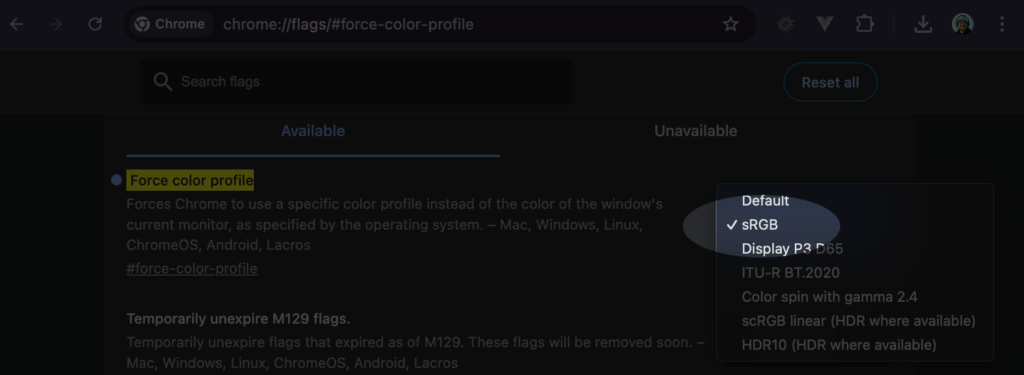
Quick Solution for Chrome UI:
- Open this URL in Chrome:
chrome://flags/#force-color-profile. - Change the "Force Color Profile" setting to sRGB.
- Take your screenshot.
- (optional) Switch the setting back to default after you're done.
Taking a Screenshot of a Single Element in Chrome DevTools
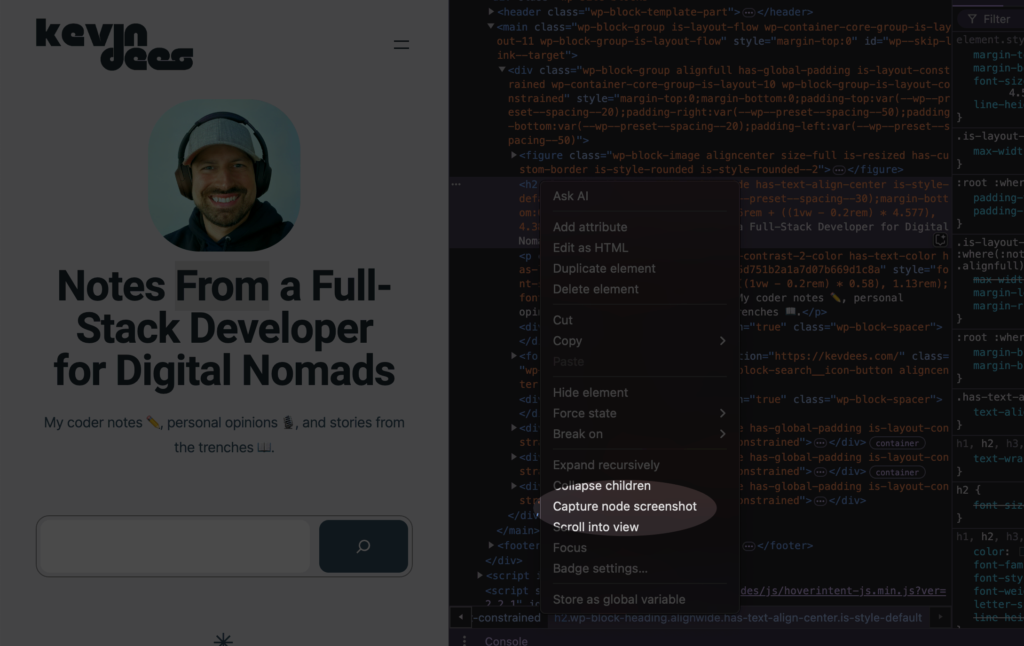
Now take a screenshot of a single element in Chrome:
- Open Chrome DevTools and navigate to the Elements panel.
- Right-click on the element you want to capture.
- Select **Capture node screenshot **from the context menu.
Fix Washed Out Colors for Puppeteer
If you are using puppeteer ensure you apply the argument --force-color-profile=srgb. It forces the browser to use the sRGB color profile, ensuring accurate and consistent color rendering:
puppeteer.launch({
  headless: true,
  defaultViewport: null,
  devtools: true,
  args: [
    '--window-size=720,720',
    '--window-position=0,0',
    '--force-color-profile=srgb'
  ]
});
This setup is ideal for tasks like automated testing, web scraping, or taking consistent screenshots with accurate color representation. The --force-color-profile=srgb argument is particularly helpful for avoiding washed-out colors in screenshots.