How to Add A WordPress Custom Login Logo
Do you want your WordPress site's logo applied to the login screen? Do you want the logo to link back to your homepage? Are you using a theme with or without full site editing?

So, do you want your WordPress site's logo applied to the login screen? Do you want the logo to link back to your homepage? Are you using a theme with or without full site editing?
Me too. Here are the Two Steps you need to take.
- Add your custom site logo to WordPress.
- Add custom PHP code to your theme so the logo is applied to your login screen.
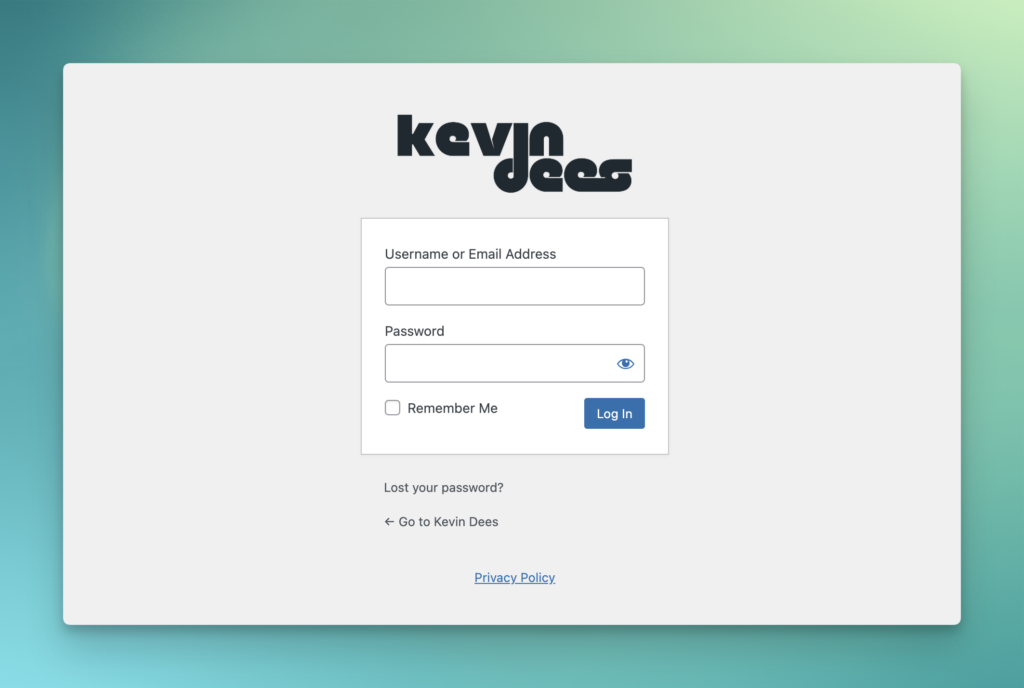
1. Add Your Custom Site Logo To WordPress
Without Full Site Editing
If your WordPress site does not use full site editing, adding a custom logo can still be done through the WordPress Customizer.
- From the admin, go to “Appearance” and click on “Customize.”
- Look for the “Site Identity” or “Header” section within the Customizer.
- Within this section, you should see an option to upload your logo or site icon.
- Click on the “Select Logo” button or a similar option to upload your custom logo file.
- Make sure to save your changes by clicking on the “Publish” button.
- By following these steps, you can successfully add a custom logo to your WordPress site.
When using the site customizer, don't confuse the site icon with the site logo — the site icon will be under "Site Identity". Your site icon can be found under "Settings > General".
With Full Site Editing
If you use a theme like Twenty Twenty-Four with full site editing with the Gutenberg block editor, you must apply the logo using the block editor.
- From the admin, go to “Appearance” and click on “Editor.”
- In full site editing, use the command pallet by using
⌘Kand typing "header". - Select the Header template option.
- Select the existing "Site Logo" block or add it.
- In the block's settings "Media" section, add your logo.
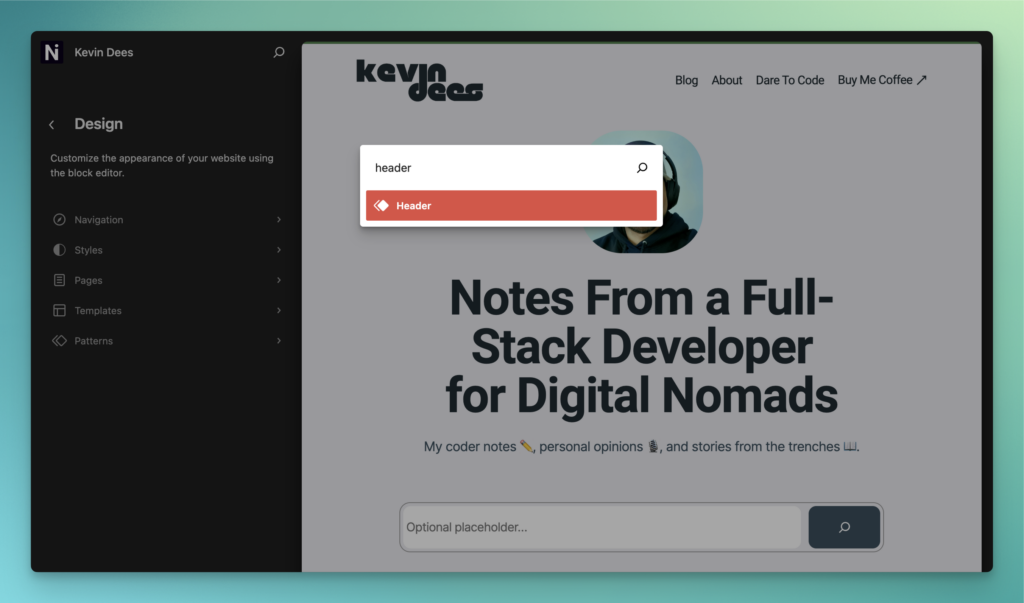
Command pallet by using ⌘K and typing "header"
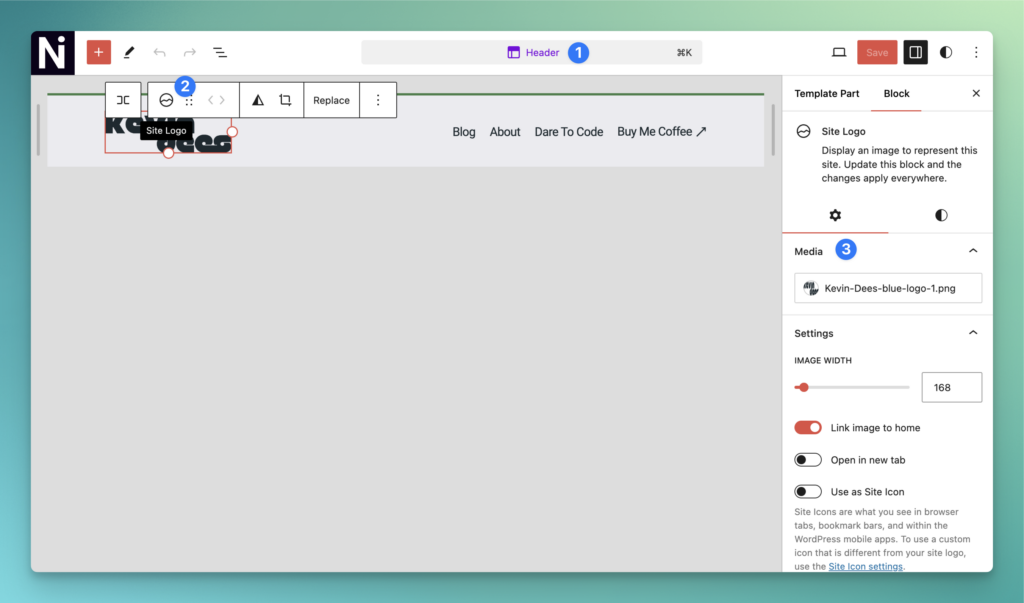
Select the existing "Site Logo" block or add it and upload your logo.
2. WordPress Login Logo Code
Add the following code to your theme's functions.php file or your custom plugin code.
add_filter( 'login_body_class', function($classes, $action) {
    $classes[] = 'custom-logo-web-login';
    return $classes;
}, 10, 2 );

add_filter('login_headertext', function($login_header_text) {
    return 'Login';
});

add_filter('login_headerurl', function($login_header_url) {
    return home_url();
});

add_filter('login_head', function(){
    [$src, $width, $height] = wp_get_attachment_image_src(get_theme_mod( 'custom_logo' ), 'full', false) ?: [null, null, null];

    if(!$src) {
        return;
    }

    $width = (int) $width;
    $height = (int) $height;
    $percentMultiple = 245 / $width;

    if($width > 245) {
        $height = $percentMultiple * $height;
        $width = 245;
    }

    echo <<<WP_CUSTOM_HEAD
    <style>
        .custom-logo-web-login {
            &.login h1 a {
                height: {$height}px;
                width: {$width}px;
                background-image: url({$src});
                background-size: {$width}px {$height}px;
            }
        }
    </style>
    WP_CUSTOM_HEAD;
});
Not Finding It?
If you can't find the custom logo section on your WordPress site, you might need to add the following code to your WordPress theme's functions.php file. This code will add custom logo option support to your theme. From there, you can try the above steps again.
add_theme_support( 'custom-logo' );https://developer.wordpress.org/themes/functionality/custom-logo/